 Back
Back
Last Updated: 09/24/2026
Last Updated: 09/24/2026

Most deskless workers are on the frontlines and often lack the technology to feel connected to the company and receive critical communications as they arise. When relying heavily on word-of-mouth communication from supervisors, information can easily be forgotten or lost between shifts, leading to delays, inefficiency, and most importantly confusion.
With ScreenCloud Touch, deskless workers can use digital signage to connect the office to the road. Employees can develop a stronger sense of agency and feel more in charge of their workdays by controlling how they interact with screens and staying informed during their shift to make faster, more effective decisions.
Ways to use interactive screens for your digital signage:
- Display a playlist of health and safety protocols that users can navigate themselves. This can include imagery, videos, or PDF documents. Create your own healthy and safe procedures in Canvas here.
- Browse a playlist of employees being recognized for recent achievements. Upload images or create canvases for each, then add them to a playlist.
- Show ‘meet the team’ photos, names, and bios of recent new hires so that other employees can get to know who they are.
- Display images of carousels from recent company events to highlight your culture.
- Feature key metrics and track real-time KPIs to allow employees on the factory floor to monitor workflows.
- Display a presentation of monthly updates using an embedded Google slideshow, allowing employees to navigate that content at their own pace to read important company updates.
- Use 3D maps to display site layouts and floor numbers to prevent personnel from becoming lost or confused.
Please view the demo below to see ScreenCloud Touch in action
Please note that this feature only comes included with the Pro and Enterprise pricing plan. Please contact your customer success manager or our support team at support@screencloud.com if you are interested in enabling ScreenCloud Touch for your touchscreen devices.
Here’s how it works:
At the moment there are two ways to enable touchscreen (Touch) capabilities with ScreenCloud, by Using the ScreenCloud player app or by use the ScreenCloud web player, which you open via a URL or QR code scan.
1. Using the ScreenCloud player app on your touch device
The ScreenCloud player app is available for the Amazon Fire tablets and Android tablets. Please see the steps below to learn how to enable ScreenCloud Touch on your tablet with our native player.
1.1 Get started by logging into your ScreenCloud account here.
1.2 Launch the ScreenCloud app on your tablet device, and use the 6 digit pairing code to pair your screen to your ScreenCloud Studio account - For a more detailed process of connecting a screen to your account, please see How to Use ScreenCloud for Digital Signage).
1.3 Add a Channel to this newly paired screen. Please note: ScreenCloud Touch only works if you set a Channel to it, so setting a single app, file or a Playlist will not enable the touchscreen feature. In addition, if you are not sure how your Channel should be set up, please see step 3, "Setting up a Channel for Touch", below.
1.4 If you are on the Pro or Enterprise plan, you will see a Touch option under your screen's device settings. Toggle the feature to on, making sure to refresh the ScreenCloud player app on your tablet.

1.5. If you do not want the splash screen & play button to be shown, and for the content to start in autoplay as soon as your Touch Interactive device restarts or reboots, you can enter the following data into the data fields under Location & Data for your screen.
Enter this to the left for Data:
sc_menuSplashEnabled
And enter this on the right:
false

This will cause content to autoplay based on the order and schedule set in the channel and playlists. Once the content is interacted with, autoplay will stop, and the last interacted-with item will remain on screen. To resume autoplay, the Interactive Mode screen must be refreshed.
1.6. Next, you will need to enable touch for the ScreenCloud player running on the device:
- For PIXI, Android, Amazon (Fire OS) and iOS, open the player side menu and toggle on Interactive mode.

- For the ScreenCloud OS (SCOS) Station P1 Pro, open the side menu and toggle on Interactive mode.

- For Windows and macOS, open the player side menu and toggle on UI Interaction.

1.7. Done! You can now interact with the content on your touch device!
1.8. Only the ScreenCloud players for Amazon's Fire OS, Android, iOS, macOS, SCOS and Windows are able to run the touchscreen feature at this time, meaning you will need to have or purchase a compatible tablet device for Amazon Fire, Android, Apple iOS or Windows, or a touchscreen monitor or screen for your macOS, SCOS or Windows device. You can find out the minimum requirements for a device that supports ScreenCloud, of the mentioned operating systems, here.
1.9. For a list of recommended Amazon and Android tablets, please see the Tablets/Signboards category of our recommended hardware page.
1.11. Read More: A Guide to Digital Interactive Kiosks
2. Using the ScreenCloud web player on your touch device
If you do not have an Android or Fire OS tablet, you can still enable Touch in a browser on any touchscreen device. For example, using Google Chrome browser, you can activate ScreenCloud's touch feature if the ScreenCloud player for that device does not support it.
2.1. To begin, scan this QR code with your touch device to quickly launch the ScreenCloud web (browser) player! You can also simply write in the URL https://web.screencloud.com into your Google Chrome internet browser app to open the ScreenCloud web player.
2.1. On your computer or laptop (or smartphone), log in to your ScreenCloud account here.
2.2. Pair a screen to your ScreenCloud Studio account with the 6 digit code provided. If you are not familiar with setting up a screen in your account, please review How to Use ScreenCloud for Digital Signage.
2.3. Add a Channel to this newly paired screen. Please note: ScreenCloud Touch only works if you set a Channel to it, so setting a single app, file or a Playlist will not enable the touchscreen feature. In addition, if you are not sure how your channel should be set up, please see step 3, "Setting up a Channel for Touch", below.
2.5. In Studio, navigate to your new screen’s ‘Device’ settings in the side bar, and toggle on the ‘Touch’ feature. Please note that you must be on the Pro or Enterprise plan to see this feature.
2.6. Refresh the browser on your touch device, and the touch menu will now appear.
2.7. Done! You can now interact with the content on your touch device inside your browser! Protip: Press the fullscreen button to force the browser into fullscreen mode.
3. Setting up a Channel for Touch
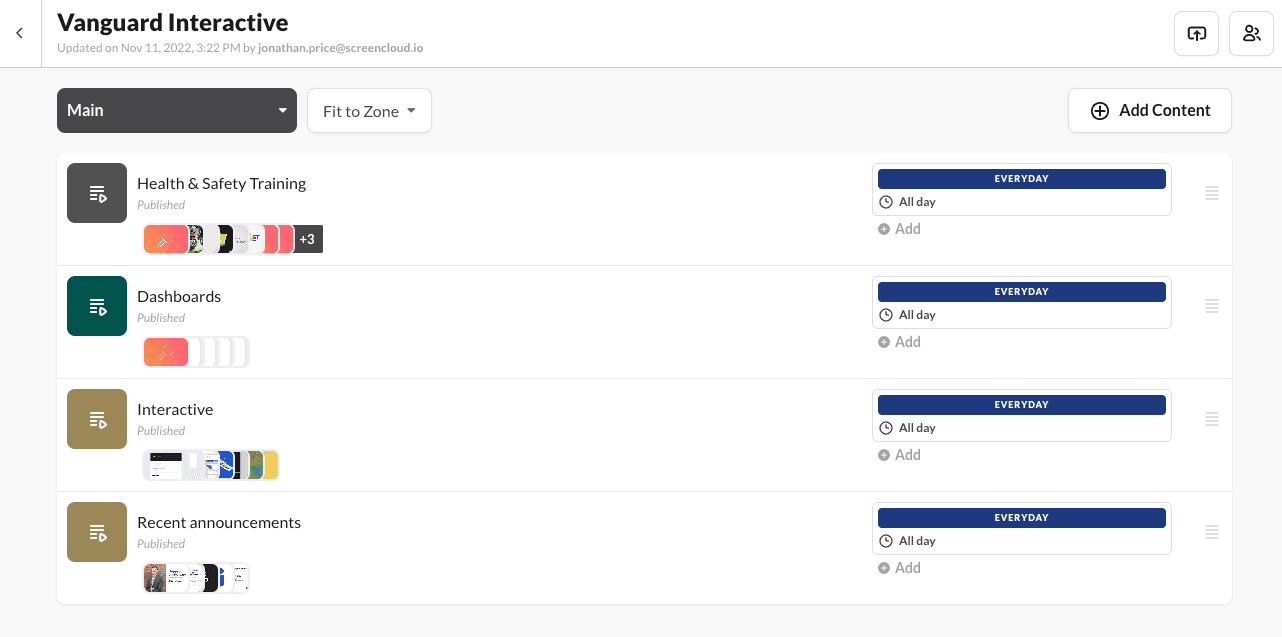
To browse content from the Touch menu, set up playlists for different content themes within a single zone channel. Playlists will appear in the order you have them in the channel. Keep in mind that The touch feature is only compatible with a single zone channel.
See our example below:
How content is organized in Studio
How this same content is presented with Touch enabled
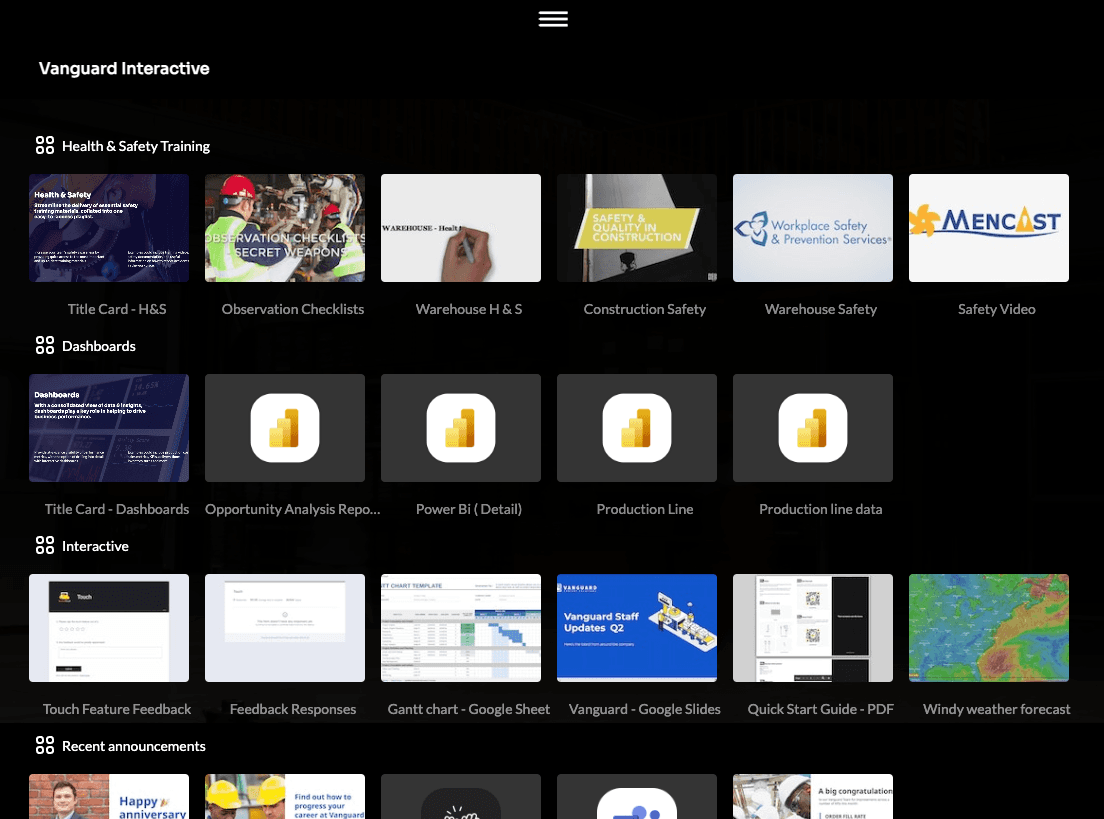
Think of playlists like ‘folders’. Whatever is in these folders will be presented on the touch device. Playlists are a simple way to group different types of content easily.
4. Landing Page Themes
To setup the landing page with brand logos, font, and color, the Channel needs to have a theme applied. The logo from the theme, channel name with the title font and primary color will be applied to the landing page.
Default if no theme is applied

With theme applied

5. Touch Requirements and Setup Overview
The following outlines the key requirements, compatibility details, and configuration settings needed to enable and use ScreenCloud Touch.
- You must be on the Pro or Enterprise subscription plan.
- For SCOS, connect a touchscreen or interactive display and enable the touch screen setting for the player.
- Requires a touch-enabled device running Amazon Fire OS, Android, iOS, macOS, or Windows. Make sure the hardware also meets or exceeds the minimum requirements for the ScreenCloud player.
- The ScreenCloud Web or Browser Player can be used with the Google Chrome browser (https://web.screencloud.com/) on a touch compatible device.
- You must assign a Channel (Touch doesn’t work with a single app, file, or playlist).
- Touch supports only single-zone channels.
- To enable Touch for the ScreenCloud player on your hardware:
A: Open your screen’s Device Settings in Studio and toggle “Touch” ON.
B: For the ScreenCloud player app, toggle on the Interactive Mode or UI interaction setting
This setting cannot be applied remotely. It must be configured directly in the player's settings side menu. - To hide the "play" screen for the interactive channel, add the below for Screens data (see point 1.5 in this article):
sc_menuSplashEnabled : false
- Apply a Theme in Studio to customize the Touch landing page with your brand’s logo, font, and colors.
- Document files (such as PDFs or PowerPoint presentations) cannot have their individual pages accessed directly with Touch. To enable this, it is recommended to export the pages as images and add them to their own playlist instead.
- Organize your content into playlists within one channel, as these act like “folders” users can browse directly from the touchscreen.